Monday, April 30, 2012

Change Password (cont.)

I just noticed an interesting screen in BI-Publisher 11g (11.1.1.6) while looking at the screenshots in

Getting Started with Oracle BI Publisher 11.1.1.6.0

Using the "My Account" link, OBIEE 11g end-users can change their passwords without having to go through the not-so elegant approach documented in my previous blog entries.I might have missed this feature in 11.1.1.5, I remember seeing a screenshot in the help link, but the "Password" tab was missing in the app. 
- Log into BIP : http://HOST:PORT/xmlpserver/
- Select My Account

a+
Fiston

Friday, April 6, 2012

Change Password (cont.)

We’ve already compiled our application, we need now to expose the Change Password method via web services.
Right Click on your main class and select “Create Web Service”
p4
Select the default
p5
Click Next
p6
Click Next twice and make sure that the changePassword is selectable and select Finish.
p7
Let’s now deploy the web service to the Weblogic server.
Right Click on the project and click deploy –>Application Server
p8
Click + to add a connection to the Weblogic server
p9
p10
p11
p12
p13
Log into Weblogic em and make sure that your web service was deployed successfully (you can also look at the JDEV log)
p14
Login to the OBIEE portal and create a new action “Invoke Web Service”
p16
And plug in the WSDL
p17
and click open
p18
This opens up a new dialog box, enter the following values for the prompts:
· Username
· Old Password
· New Password
-Confirm Password
For the Username prompt value, select under the drop down “Session Variable”, type in USER and mark it as hidden.
p19
Select the “Options” tab and personalize the messages
p20
Click on the “Action Results” tab and enter the parameters
p22
Save the action.
p23
You can test it by running the action
p24
p25
p26

a+
Fiston

Monday, April 2, 2012

Calling bip runReport from job manager

Here is a quick experiment with Oracle job scheduler manager. As Venkat blogged about long time ago, Oracle Job Manager can be used to call custom Java code. One customer of ours asked about using Job manager to run/schedule BI-Publisher reports? Why would you do that I asked? The final solution we ended up chosing used ADF pages and taskflows.
Privately, I decided to take the challenge and see how to go about implementing the requested functionality. I am taking the WS route and luckily bip comes with several awesome web services, one of them is runReport.
Create a new Jdeveloper generic application:
Application Name: jobManager
Package prefix: bip
Click Next and name your project
Project Name: bip


Next, we’ll add a proxy web service for the BIP server
Add a java class: callBIP


We need to add the 3 jars to the project in order to be able to run custom Java jobs.
    - schedulerrpccalls.jar
    - xdocore.jar
- versioninfor.jar
The code below will call the bip web services, pass in the report xdo absolute path to be run and save the output to the local drive .


package bip;
import com.oracle.xmlns.oxp.service.v2.AccessDeniedException_Exception;
import com.oracle.xmlns.oxp.service.v2.InvalidParametersException_Exception;
import com.oracle.xmlns.oxp.service.v2.OperationFailedException_Exception;
import com.oracle.xmlns.oxp.service.v2.ReportRequest;
import com.oracle.xmlns.oxp.service.v2.ReportResponse;
import com.oracle.xmlns.oxp.service.v2.ReportService;
import com.oracle.xmlns.oxp.service.v2.ReportService_Service;
import com.siebel.analytics.scheduler.javahostrpccalls.SchedulerJavaExtension;
import com.siebel.analytics.scheduler.javahostrpccalls.SchedulerJobException;
import com.siebel.analytics.scheduler.javahostrpccalls.SchedulerJobInfo;
import java.io.FileNotFoundException;
import java.io.FileOutputStream;
import java.io.IOException;

public class callBIP implements SchedulerJavaExtension {
public static String userID = "weblogic";
public static String password = "welcome1";
private static ReportService_Service reportService_Service;
        public void cancel() {
        }
    public void run(SchedulerJobInfo jobInfo) throws SchedulerJobException {
        reportService_Service = new ReportService_Service();
        ReportService reportService = reportService_Service.getV2ReportService();
        try {
//Take the first paramater as the report xdo file and call the bip web service
            ReportResponse reportOutput =
                callBIP.runBipReport(reportService, jobInfo.parameter(0));
//Save output to local drive
       String strFilePath = "C://temp//report.pdf";
       FileOutputStream out = new FileOutputStream(strFilePath);
            out.write(reportOutput.getReportBytes());
            out.close();           
        } catch (IOException e) {
            jobInfo.setMessage(e.getMessage());
            jobInfo.setStatus(2);
        } catch (InvalidParametersException_Exception e) {
           jobInfo.setMessage(e.getMessage());
            jobInfo.setStatus(2);
        } catch (AccessDeniedException_Exception e) {
           jobInfo.setMessage(e.getMessage());
            jobInfo.setStatus(2);
        } catch (OperationFailedException_Exception e) {
           jobInfo.setMessage(e.getMessage());
            jobInfo.setStatus(2);
        }
    }
    public static ReportResponse runBipReport(ReportService reportService,
                                           String reportName) throws InvalidParametersException_Exception,
                                                                            AccessDeniedException_Exception,
                                                                            OperationFailedException_Exception,
                                                                            FileNotFoundException,
                                                                            IOException {
        ReportRequest req = new ReportRequest();
        req.setAttributeLocale("en-US");
        req.setAttributeFormat("pdf");
        req.setReportAbsolutePath(reportName);
        ReportResponse reportOutput = reportService.runReport(req, userID, password);
        return reportOutput;
    }

    }
}

Compile the code and deploy the JAR file to the javahost lib directory.
Change the javahost config.xml flag to enable custom java code processing by javahost.

Start Job Manager and enter the class name bip.callBIP, the class Path jar file: bipFile.jar. The report full xdo path is passed as a parameter in the parameters section


Execute the job et voila
Of course reports can be scheduled as well using this approach.

a+
Fiston


Monday, February 27, 2012

Playing with the Summary Advisor


The goal for this posting is to do a quick experiment with the new OBIEE 11.1.1.6 feature "Summary Advisor" based on what I had a chance to learn about it and to document the steps:  For this I'll be using an "Exalyticless" setup with the following components
11.1.1.6
TimesTen 
Oracle db
First there are few required steps that have to be done in TimesTen, the OBIEE RPD and the Weblogic enterprise manager.
TimesTen:
Download 
Installation Guide
Once TimesTen is installed, create a new connection in SQL*Plus or SQL Developer. Once connected,  create a new user that will be used by the Admin Tool to connect to TimesTen.  

create user bi11g identified by Admin123;
grant create table to bi11g;
grant select on SYS.OBJ$ to bi11g;
grant create session to bi11g;

Create a new connection to SQL Developer for bi11g and a table BI_TABLE. BI_TABLE will be used to test the connection pool for the Summary Advisor 
Name: BI_TABLE1
Column Name: COLUMN1 (VARCHAR2(4000))

Add one row of data just for testing

OBIEE Admin Tool
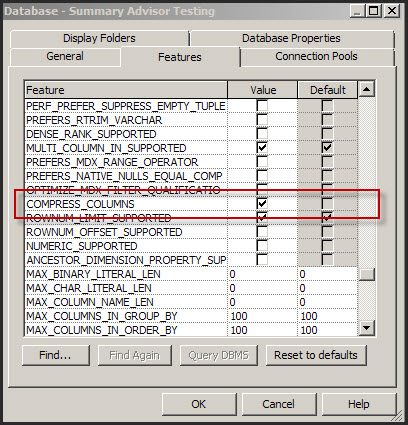
Log into the Admin Tool and create a connection pool to the TimesTen instance, this will be used by Summary Advisor as a target data store.


Enable the COMPRESS_COLUMNS to cause the Summary Advisor to create aggregates in TimesTen using the Compressed Columns capability.

WL Enterprise Manager
  • Need to make sure that the Usage Tracking parameters and the Summary Advisor settings are set correctly. 
  • Log into WL enterprise manager and navigate to the “System MBean Browser”

  • Navigate to the BIDomain.BIInstance.ServerConfiguration 

We need to make sure that the values are in sync with the repository settings.
Now that we’re done with the settings, we can test our system without the Summary Advisor feature implemented; this will serve as a reference that will be used for comparison once the Summary Advisor is implemented. This will be the topic of a future posting.

a+
Fiston


Usage Tracking in OBIEE 11.1.1.6

In case you haven't noticed yet, Usage Tracking is now a system managed attribute in 11.1.1.6, you can no longer directly configure this using the NQSCONFIG.INI file. 
To configure Usage Tracking, log into WL enterprise manager and 

  • Expand the WebLogic Domain and the bifoundation_domain .

  • Right-click on the Admin Server and select "System MBean Browser."

  • Navigate to the MBean in the following tree:
    • Application Defined Mbeans
      •  oracle.biee.admin
        •  BIDomain.BIInstance.ServerConfiguration

        List of configuration settings

a+
Fiston

Box and Whiskers Plot using R and BIP

 I’ve just started experimenting with R in conjunction with BI-Publisher. R provides various statistical packages and plotting utilities and there are numerous resources on the web dedicated to it. The goal is to take a generate a plot using R and render it in BI-Publisher. The installation steps for R enterprise are covered in the Oracle® R Enterprise User's Guide, the main steps are: 


  • Install the R server ((LINUX/UNIX)

To connect to R enterprise from R client run the following:
ore.connect(user = "",sid = "",host = "",password = "",port = PORTNUMBER)
# Synchronize R with user's schema in Oracle
ore.sync()
# Attach environment containing visible Oracle tables and views
# to the search path
ore.attach()
Modify (user, sid, host, password, and port) for the database where the R Server is installed

  • Create the R script

As an example, I’ll generate a box and whiskers plot using the ONTIME_S airline on-time performance data. Box and whiskers plots are not available out of the box in BI-Publisher.  The plot will use a subset of the dataset to focus on the DMV Airports: Reagan Airport (DCA), Dulles Airport (IAD) and Baltimore Washington airport (BWI) for 2007 and 2008.
Below is the R script that generates the plot:

f <-function(){
  ontime <- ONTIME_S
  delay <- ontime$ARRDELAY[ontime$DEST %in%  c("BWI", "IAD", "DCA") & ontime$YEAR %in% c(2007,2008)]
  dest <- ontime$DEST[ontime$DEST %in%  c("BWI", "IAD", "DCA") & ontime$YEAR %in% c(2007,2008)]
  dest <- reorder(dest, delay, FUN = median)
  bd <- split(delay, dest)
  res <- boxplot(bd, ylim=c(-50,60),col=c( "darkolivegreen","coral3","cornflowerblue"),main="Flight Delays by Airport",  xlab="Airport", ylab="Delay (minutes)")
}
f()


The R script has to be modified a bit to "escape" the "&" sign (in red), if not ontime will be considered a prompted parameter. This script can be run using SQL*Plus.
 BEGIN
sys.rqScriptCreate('DMVAirports',
'f <-function(){
  ontime <- ONTIME_S
  delay <- ontime$ARRDELAY[ontime$DEST %in%  c("BWI", "IAD", "DCA") '||'&'||' ontime$YEAR %in% c(2007,2008)]
  dest <- ontime$DEST[ontime$DEST %in%  c("BWI", "IAD", "DCA") '||'&'||' ontime$YEAR %in% c(2007,2008)]
  dest <- reorder(dest, delay, FUN = median)
  bd <- split(delay, dest)
  res <- boxplot(bd, ylim=c(-50,60),col=c( "darkolivegreen","coral3","cornflowerblue"),main="Flight Delays by Airport",  xlab="Airport", ylab="Delay (minutes)")
}  ');
END;
/

  • Create a BI-Publisher data model using the following query:


select value from table(rqEval(NULL,'XML','DMVAirports'))


You can list all the available R functions in the database by running:
select name from  sys.rq_scripts

  • Change the VALUE field from CLOB to XML
  • Generate some sample XML
  • Create a new template using BI-Publisher Desktop and insert the field img with the following properties:  


  •  Create a PDF output et voila!!!


Too bad I live 10 mins from the airport with the worse performance!

For more information, tutorials visit:

a+
Fiston